
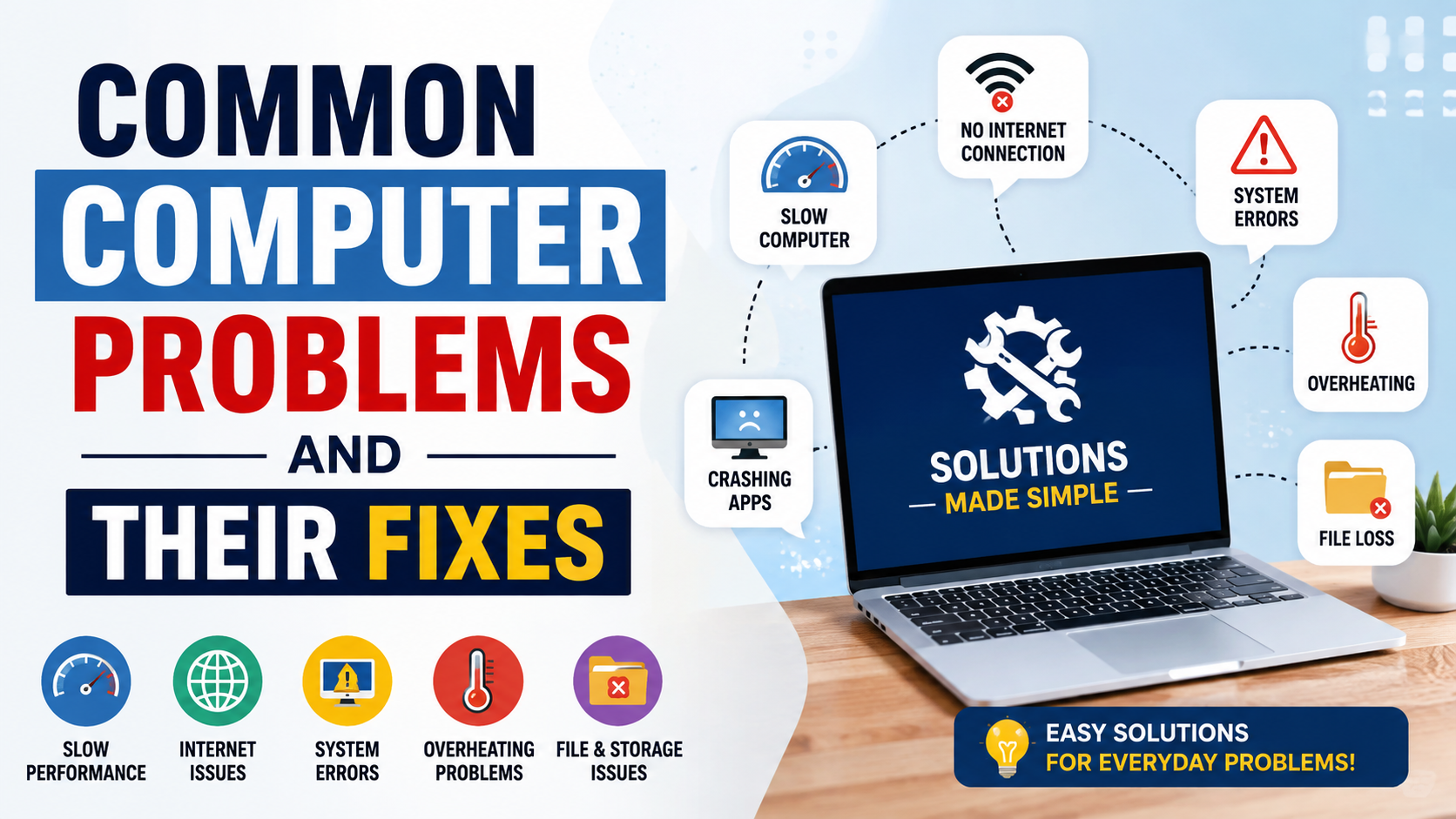
Common computer problems and their fixes explained in simple steps. Learn how to troubleshoot slow computers, internet issues, overheating, crashes, storage problems, and more.
Computers have become an essential part of everyday life. Whether you use a computer for work, education, entertainment, online banking, communication, or business, even a small technical problem can interrupt your routine. Fortunately, many common computer problems can be fixed without visiting a repair shop or hiring a technician.
From a slow computer and internet connection issues to application crashes, overheating, storage problems, and startup errors, most users eventually experience one or more of these difficulties. Understanding the possible causes and basic solutions can save time, money, and frustration.
This guide explains the common computer problems and their fixes in simple language. These troubleshooting steps are useful for Windows users and can help you identify whether a problem can be solved at home or requires professional assistance.
1. Computer Is Running Slowly
A slow computer is one of the most common problems faced by users. You may notice that applications take longer to open, websites load slowly, files take time to open, or the computer becomes unresponsive.
Possible Causes
Several factors can make a computer slow:
- Too many programs running at the same time
- Too many startup applications
- Low RAM
- Nearly full storage
- Outdated software or drivers
- Temporary files
- Malware or unwanted programs
- An aging hard drive
- Too many browser tabs or extensions
How to Fix It
Start by restarting your computer. A restart clears temporary system processes and can immediately improve performance.
Next, check which applications are consuming system resources. On Windows, you can open Task Manager by pressing Ctrl + Shift + Esc. Look at the CPU, Memory, Disk, and Network columns.
Close programs that you are not using, but avoid ending unfamiliar Windows system processes.
You can also reduce unnecessary startup applications. Open Task Manager, select Startup apps, and disable programs you do not need to launch automatically.
Cleaning unnecessary files and uninstalling unused applications can also free up storage space.
If your computer still feels slow, consider upgrading RAM or replacing an old mechanical hard drive with an SSD if your device supports it.
2. Computer Won’t Turn On
Another frustrating problem is when a computer does not power on.
Sometimes the problem is very simple, such as a disconnected power cable. In other cases, the issue may involve the power supply, battery, motherboard, or another hardware component.
Basic Fixes
First, check whether the power cable is properly connected. If you are using a laptop, connect the charger and wait a few minutes before trying again.
For a desktop computer, make sure the power switch on the power supply is turned on.
You can also try disconnecting unnecessary USB devices, external drives, and other accessories. Then attempt to start the computer again.
If there are no lights, sounds, or signs of power, the problem may be hardware-related and professional diagnosis may be necessary.
3. Computer Freezes or Becomes Unresponsive
Sometimes a computer completely freezes. The mouse may stop moving, the keyboard may not respond, and applications may become stuck.
Why Does This Happen?
Common causes include:
- Insufficient RAM
- High CPU usage
- Overheating
- Faulty applications
- Driver problems
- Malware
- Hardware failure
Solution
Wait for a few moments to see whether the computer responds again. If it remains frozen, try pressing Ctrl + Alt + Delete.
If the security screen appears, open Task Manager and close the application that is not responding.
If nothing works, you may need to hold the power button to shut the computer down. However, forced shutdown should be used only when the system is completely unresponsive because unsaved work may be lost.
After restarting, check whether the same application or task is repeatedly causing the problem.
4. Internet Connection Is Not Working
Internet problems are extremely common, particularly when using Wi-Fi.
You may see messages such as “No Internet,” “Connected, no internet,” or “Can’t connect to this network.”
Common Causes
- Router problems
- Weak Wi-Fi signal
- Incorrect network settings
- ISP outage
- Driver problems
- Network congestion
- Incorrect password
How to Fix It
First, restart your router. Turn it off, wait for approximately 30 seconds, and turn it back on.
Check whether other devices connected to the same Wi-Fi network have internet access. If none of your devices can connect, the issue may be with the router or internet service provider.
If other devices work but your computer does not, disconnect and reconnect the Wi-Fi network on your computer.
You can also restart your computer and check for available network driver updates.
For persistent connection problems, Windows network troubleshooting tools can help identify configuration issues.
5. Computer Is Overheating
Computers generate heat while operating. However, excessive heat can cause performance problems, unexpected shutdowns, or hardware damage.
Signs of Overheating
- Loud fan noise
- Computer becomes very hot
- Sudden shutdowns
- Slow performance
- Frequent freezing
- Fan running continuously
Fixes
Keep your computer on a hard, flat surface so that ventilation openings are not blocked.
For laptops, avoid placing them on beds, blankets, or soft surfaces for long periods because they can restrict airflow.
Clean dust from ventilation areas carefully. Desktop users should also check whether the internal fans are covered with dust.
If overheating continues even after cleaning, the cooling system may require professional inspection.
6. Computer Has Very Little Storage Space
When your storage drive becomes almost full, you may experience slow performance and difficulties installing new applications or saving files.
How to Free Up Space
Start by deleting unnecessary files.
You can remove:
- Temporary files
- Old downloads
- Unused applications
- Duplicate files
- Unnecessary videos
- Old installation files
Windows includes built-in storage management features that can help identify which categories are using the most space.
You can also move large personal files such as videos and photos to an external drive or trusted cloud storage service.
Avoid manually deleting files from Windows system folders unless you know exactly what they are.
7. Applications Keep Crashing
An application may suddenly close, freeze, or display an error message.
Possible Causes
- Outdated application
- Corrupted installation
- Insufficient system resources
- Compatibility issues
- Missing system components
- Driver problems
Solutions
First, restart the application and computer.
Check whether an updated version of the application is available. Developers frequently release updates that fix bugs and compatibility problems.
If updating does not help, uninstall and reinstall the application.
Also check whether your computer meets the application’s minimum system requirements.
If only one application crashes repeatedly while other programs work normally, the application itself is more likely to be responsible.
8. Keyboard or Mouse Is Not Working
A keyboard or mouse may suddenly stop responding.
For wired devices, check whether the USB connection is secure. Try another USB port if available.
For wireless devices, check the battery and make sure the wireless receiver or Bluetooth connection is active.
Restarting the computer can also resolve temporary driver or connection problems.
If a particular device still does not work, connect another keyboard or mouse. This can help determine whether the issue is with the computer or the peripheral.
9. Computer Is Not Detecting a USB Device
USB drives, phones, external hard drives, printers, and other accessories may sometimes fail to appear.
Possible Fixes
Disconnect the device and reconnect it.
Try another USB port. If possible, test the device on another computer.
If the device works elsewhere, the problem may be related to your computer’s USB settings or drivers.
Windows users can also check Device Manager for hardware-related warnings.
Always safely eject external storage devices when possible to reduce the risk of data corruption.
10. Printer Is Not Printing
Printer problems are common in offices, schools, and homes.
You might send a document to print but receive no output.
Common Reasons
- Printer is offline
- Empty ink or toner
- Paper jam
- Incorrect printer selected
- Connection problem
- Stuck print queue
- Outdated printer driver
How to Fix It
Check that the printer is switched on and properly connected.
Make sure paper is loaded and there are no paper jams.
On your computer, verify that you have selected the correct printer.
If several documents are stuck in the print queue, cancel them and try printing again.
Restarting both the printer and computer can also solve temporary communication problems.
11. Blue Screen Error
Windows users may occasionally encounter a blue screen with an error message. This is commonly known as a Blue Screen of Death (BSOD).
It generally indicates that Windows encountered a serious system problem.
Possible Causes
- Faulty drivers
- Hardware problems
- Corrupted system files
- Memory problems
- Incompatible software
- Overheating
What You Should Do
Take note of the error message or stop code displayed on the screen.
Restart the computer and check whether the problem happens again.
If the blue screen started after installing new hardware, software, or a driver, consider whether that recent change is related.
Keep Windows and device drivers updated.
If blue screens happen repeatedly, especially with different error messages, consider backing up important data and getting professional technical assistance.
12. Computer Cannot Connect to Bluetooth Devices
Bluetooth problems can prevent headphones, keyboards, mice, speakers, and other devices from connecting.
First, make sure Bluetooth is enabled on the computer.
Check that the accessory is switched on and in pairing mode.
Remove the device from the Bluetooth settings and pair it again.
Keeping the computer’s Bluetooth and device drivers updated can also help.
If another Bluetooth device connects successfully, the original accessory may be the source of the problem.
13. Computer Battery Drains Quickly
Laptop battery life can decrease over time.
High screen brightness, background applications, gaming, video streaming, and high-performance settings can consume significant battery power.
Ways to Improve Battery Life
- Reduce screen brightness
- Close unnecessary applications
- Turn off Bluetooth when not needed
- Disconnect unused accessories
- Use battery-saving modes
- Keep software updated
- Reduce unnecessary background activity
If the battery is old and its capacity has significantly decreased, replacement may be necessary.
14. Files Are Accidentally Deleted
Accidentally deleting important files can be stressful.
Before assuming the files are permanently lost, check the Recycle Bin.
If the file is there, right-click it and select the restore option.
For important files, maintaining regular backups is much safer than relying entirely on recovery tools.
Consider keeping copies of important documents and photographs on a separate storage device or reputable cloud service.
15. Computer Has Strange Pop-Ups or Unwanted Software
Unexpected advertisements, browser redirects, unknown applications, or unusual system behavior can sometimes indicate unwanted software or malware.
What to Do
Avoid clicking suspicious pop-ups or unknown links.
Keep your operating system and security software updated.
Run a security scan using trusted security software.
Remove applications that you do not recognize, but be careful not to uninstall legitimate system components.
If you suspect serious malware infection, disconnect the computer from the internet when appropriate and seek professional assistance, especially if sensitive information may have been exposed.
16. Windows Updates Are Not Installing
Windows updates are important because they can provide security improvements, bug fixes, and compatibility updates.
Sometimes an update fails because of insufficient storage, internet problems, corrupted update files, or other system issues.
Possible Solutions
Restart the computer and try the update again.
Make sure you have enough free storage.
Check your internet connection.
Windows also provides troubleshooting options for update-related problems.
Avoid repeatedly interrupting an update while it is installing, as doing so can create additional problems.
17. Browser Is Running Slowly
A slow browser can make everyday internet use frustrating.
Too many open tabs, extensions, cached data, or resource-heavy websites can affect performance.
Close unnecessary tabs and disable browser extensions that you do not need.
Clear cached browsing data when appropriate.
Also check whether your browser is updated to the latest available version.
If only one website is slow while other sites work normally, the issue may be with that particular website rather than your computer.
18. When Should You Contact a Professional?
Many basic computer problems can be solved at home, but some situations require professional assistance.
Consider contacting a qualified technician if:
- The computer repeatedly shuts down
- You smell burning or see smoke
- The device has suffered liquid damage
- The hard drive makes unusual noises
- Important files are inaccessible
- Hardware components need replacement
- Blue screen errors continue
- The computer does not power on
- Malware infection appears serious
- You are uncomfortable performing troubleshooting steps
Do not open a computer’s power supply or attempt electrical repairs unless you have the appropriate technical knowledge and training.
Preventive Tips to Avoid Common Computer Problems
Prevention is often easier than troubleshooting. A few simple habits can improve computer reliability.
Keep Your Software Updated
Install operating system, browser, application, and security updates from trusted sources.
Maintain Enough Free Storage
Avoid filling your primary storage drive completely. Regularly remove unnecessary files and applications.
Back Up Important Files
Keep important documents, photographs, projects, and other valuable data backed up.
Use Reliable Security Software
Use trusted security tools and avoid downloading programs from suspicious websites.
Keep the Computer Clean
Dust can affect cooling and airflow. Keep ventilation areas clean and unobstructed.
Avoid Suspicious Links
Be careful with unknown email attachments, websites, pop-ups, and downloads.
Restart Your Computer Regularly
A restart can clear temporary processes and resolve certain software issues.
Handle Hardware Carefully
Protect laptops from drops, liquid spills, excessive heat, and physical damage.
Conclusion
Understanding common computer problems and their fixes can make everyday technology much easier to manage. Problems such as slow performance, internet connection failures, application crashes, overheating, storage shortages, keyboard issues, printer errors, and Bluetooth connectivity problems often have straightforward solutions.
The key is to troubleshoot systematically. Start with simple steps such as restarting the computer, checking connections, closing unnecessary applications, updating software, and checking available storage. Avoid making complicated system changes unless you understand their effects.
Regular maintenance, reliable security practices, software updates, and backups can prevent many problems before they become serious. However, when a problem involves potential hardware failure, electrical damage, severe malware, or valuable inaccessible data, professional assistance is the safer option.
With basic troubleshooting knowledge and good maintenance habits, users can solve many everyday computer problems and keep their systems working more reliably.
Frequently Asked Questions (FAQs)
1. What is the most common computer problem?
Slow computer performance is one of the most common problems. It can be caused by insufficient RAM, too many startup programs, low storage space, outdated software, malware, or aging hardware.
2. How can I fix a computer that is running slowly?
Start by restarting the computer and closing unnecessary applications. Check Task Manager for programs using excessive CPU or memory, disable unnecessary startup applications, remove unwanted software, and free up storage space.
3. Why is my computer connected to Wi-Fi but has no internet?
This can happen because of router problems, ISP outages, network configuration issues, or computer-specific connectivity problems. Restarting the router and computer and reconnecting to the Wi-Fi network are useful first steps.
4. How do I prevent my computer from overheating?
Keep ventilation openings unobstructed, use a laptop on a hard surface, clean dust from vents, and avoid running demanding applications for long periods if the cooling system is struggling.
5. When should I take my computer to a technician?
You should consider professional help when the computer has serious hardware problems, repeated crashes, liquid damage, unusual electrical symptoms, persistent startup failures, severe malware infections, or important data that cannot be accessed.