
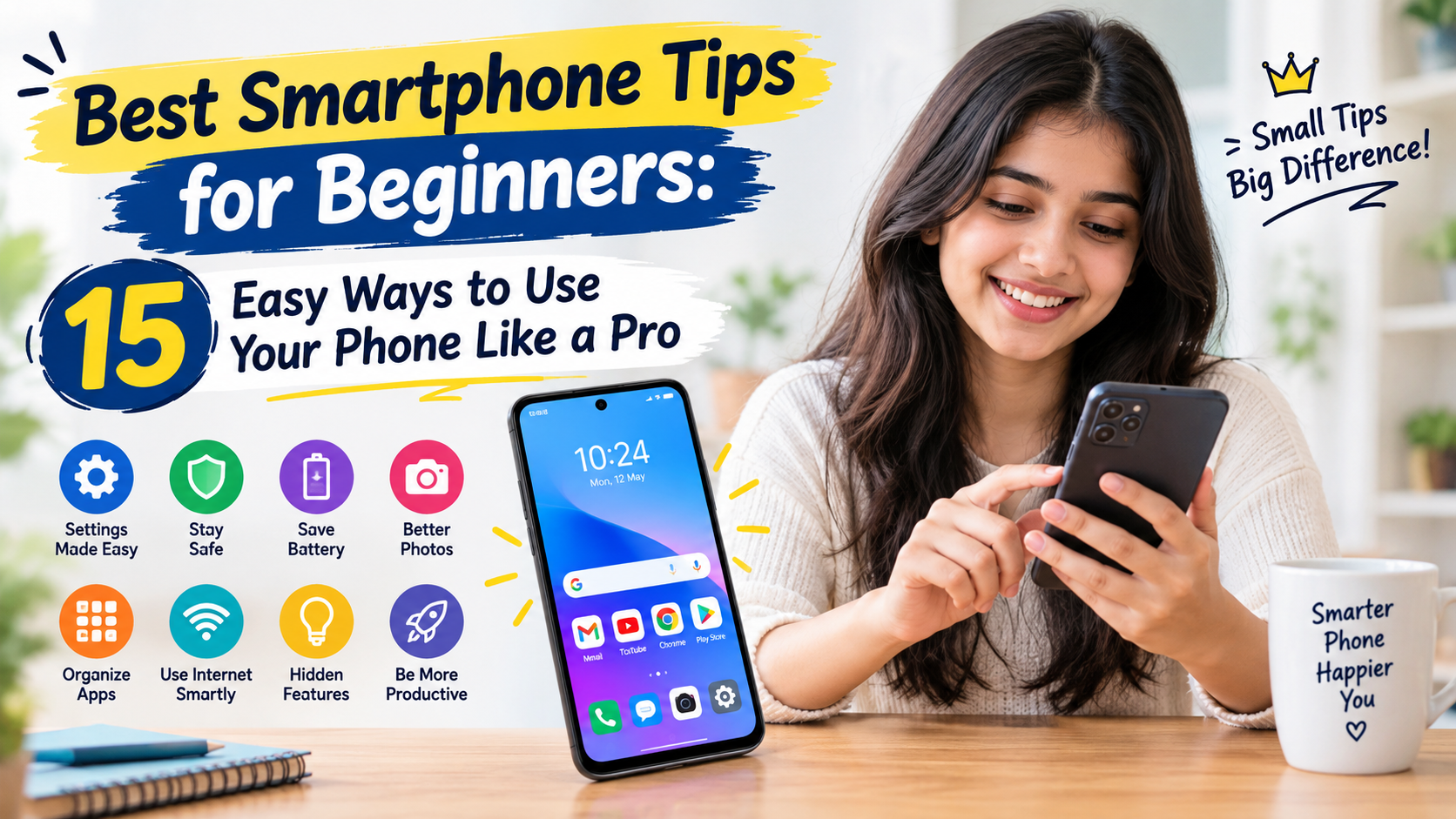
Discover the best smartphone tips for beginners, including essential settings, battery-saving tricks, security features, useful apps, storage management, and easy ways to improve your phone experience.
Smartphones have become an important part of everyday life. People use them to make calls, send messages, browse the internet, attend online meetings, take photographs, watch videos, make digital payments, and manage personal information. Although modern smartphones offer many powerful features, beginners may find it difficult to understand all the settings and tools available on their devices.
Learning a few basic smartphone tips can make everyday activities easier, improve device performance, protect personal information, and help users avoid common mistakes. Whether you have recently purchased your first smartphone or want to understand your existing device better, learning how to use its essential features is a valuable skill.
You do not need advanced technical knowledge to use a smartphone effectively. Simple habits, such as keeping your software updated, managing storage, using a screen lock, and adjusting battery settings, can make a noticeable difference.
In this guide, we explore 15 of the best smartphone tips for beginners. These tips cover essential settings, battery life, internet usage, privacy, security, useful applications, and troubleshooting methods for a safer and more convenient mobile experience.
1. Learn the Basic Smartphone Settings
The first step for every beginner is to understand the main settings on their smartphone. Settings allow you to customize how your device works and manage important features.
Most smartphones include options for Wi-Fi, Bluetooth, display brightness, sound, notifications, battery usage, storage, privacy, and security.
On Android phones, you can usually open the Settings app from the home screen or app drawer. On an iPhone, open the Settings app to access device controls.
Important Settings to Learn
- Wi-Fi: Connect to wireless internet networks.
- Bluetooth: Connect compatible headphones, speakers, and other devices.
- Display: Adjust brightness, text size, and screen timeout.
- Sound: Change ringtone, notification volume, and vibration.
- Battery: Review battery usage and enable power-saving options.
- Privacy: Manage access to your location, camera, microphone, and other information.
Spend a few minutes exploring these options. Avoid changing unfamiliar advanced settings unless you understand their purpose. Learning the basic controls will help you use your phone more confidently.
2. Protect Your Smartphone With a Strong Screen Lock
Smartphone security should be a priority from the beginning. Your device may contain personal photographs, messages, contacts, banking applications, and private documents.
A strong screen lock helps prevent unauthorized people from accessing this information if your phone is lost or left unattended.
Recommended Security Options
PIN: Choose a PIN that is difficult for others to guess. Avoid obvious combinations such as 1234 or your birth date.
Password: A strong password can provide additional protection when supported by your device.
Fingerprint authentication: Compatible phones may allow you to unlock the device using your fingerprint.
Face authentication: Supported devices can use facial recognition for convenient access, although the security level varies by implementation.
Biometric authentication is convenient, but you should still maintain a strong PIN or password as a backup.
You should also enable automatic screen locking after a short period of inactivity. This reduces the chance of someone accessing your phone when you forget to lock it manually.
3. Improve Your Smartphone Battery Life
Battery life is one of the most common concerns for smartphone users. If your battery drains quickly, a few adjustments may help.
Simple Battery-Saving Tips
- Reduce screen brightness when full brightness is unnecessary.
- Enable Battery Saver or Low Power Mode when needed.
- Shorten the automatic screen timeout.
- Review which applications consume the most battery.
- Turn off Bluetooth or location services when they are not needed.
- Limit unnecessary notifications and background activity.
- Avoid keeping power-hungry applications running unnecessarily.
Modern operating systems already manage many background processes, so repeatedly closing every application is not always helpful. Focus on applications that genuinely consume excessive power.
Battery performance also depends on device age, signal strength, screen usage, temperature, and battery condition.
Avoid exposing your phone to extreme heat. If your device becomes unusually hot, stop demanding activities and allow it to cool naturally. Use compatible, reputable charging accessories and follow the manufacturer’s charging recommendations.
4. Keep Your Smartphone Storage Under Control
Running out of storage can prevent you from taking photographs, downloading applications, or installing software updates. Beginners should regularly review how their storage is being used.
How to Manage Storage
Delete unnecessary downloads: Remove files you no longer need from the Downloads folder.
Review photographs and videos: Large videos can occupy substantial storage space. Back up important files before deleting them.
Uninstall unused applications: Remove apps you no longer use, especially those that take up significant space.
Clear app caches when appropriate: Some applications allow you to clear temporary files. On Android, the exact options depend on the device and operating system.
Review messaging media: Photos, videos, and documents received through messaging applications can accumulate over time.
Use trusted backup services: Back up important files before removing local copies. Confirm that the backup has completed successfully.
Be careful when deleting files from cloud-connected galleries. Depending on the service and settings, deleting a photograph may also remove it from synchronized devices or cloud storage.
5. Use Wi-Fi and Mobile Data Wisely
Internet access is essential for many smartphone activities, but mobile data plans may have usage limits. Understanding the difference between Wi-Fi and mobile data can help you manage your internet consumption.
Wi-Fi connects your phone to a wireless network, such as your home internet connection. Mobile data uses your cellular network provider’s service.
Tips for Managing Internet Usage
- Connect to your trusted home Wi-Fi network when available.
- Check your mobile data usage in your phone settings.
- Set a data warning or limit if your Android device supports it.
- Download large updates over trusted Wi-Fi when practical.
- Restrict background data for applications that use too much data.
- Disable automatic media downloads in messaging apps if necessary.
Be cautious when using public Wi-Fi for sensitive activities. Prefer trusted networks, use secure websites, and avoid entering confidential information into unfamiliar pages.
If you use a public Wi-Fi network, remember that a network name alone does not prove that the connection is legitimate.
6. Keep Your Smartphone Software Updated
Software updates can improve security, fix bugs, enhance compatibility, and sometimes introduce new features.
Many beginners ignore update notifications because they worry about using mobile data or losing battery power. However, postponing important security updates for long periods can leave a device vulnerable to known problems.
How to Check for Updates
On Android, look for Settings → System → Software update or a similarly named option. The exact path varies by manufacturer.
On iPhone, open Settings → General → Software Update.
Before a major update, ensure that your battery is sufficiently charged, your internet connection is stable, and important files are backed up.
Some older smartphones may no longer receive the latest operating system updates. If your device has reached the end of its support period, consider the security implications when using it for sensitive activities.
7. Download Applications From Trusted Sources
Applications allow smartphones to perform many different tasks, including banking, learning, entertainment, navigation, photography, and communication.
However, downloading unknown applications can expose your phone to malicious software, intrusive advertisements, and privacy risks.
Safe App-Downloading Practices
Use official app stores: Prefer Google Play on supported Android devices and the Apple App Store on iPhones.
Check the developer: Confirm that the application comes from the expected company or organization.
Read recent reviews: Look for recurring complaints about suspicious behavior, unexpected charges, or poor functionality.
Review permissions: A simple flashlight application generally should not need access to your contacts or messages.
Check subscriptions: Some applications offer free trials that automatically convert into paid subscriptions.
Keep apps updated: Updates may fix bugs and security vulnerabilities.
Even applications available through official stores should be evaluated carefully. Read the privacy information and grant only the permissions needed for the features you use.
8. Learn to Use Screenshots and Screen Recording
Screenshots and screen recordings are useful smartphone features that many beginners overlook.
A screenshot captures a still image of whatever appears on your screen. Screen recording captures activity over time, sometimes including audio, depending on the device and settings.
When Can You Use Screenshots?
- Save an important confirmation message.
- Capture an error message before troubleshooting.
- Keep a copy of useful information for personal reference.
- Share instructions with a family member or colleague.
- Save a booking confirmation for convenient access.
On many Android phones, pressing the Power and Volume Down buttons together takes a screenshot. Some models provide additional gestures.
On an iPhone, the screenshot combination generally uses the Side button and Volume Up button on compatible models with Face ID. Models with a Home button may use a different combination.
Screen recording is often available through Quick Settings on Android or Control Center on iPhone.
Remember that screenshots may contain personal information, passwords, verification codes, or financial details. Review images before sharing them with others.
9. Organize Your Home Screen
A well-organized home screen makes your smartphone easier to use. Beginners sometimes install many applications and leave them scattered across multiple screens.
Organizing frequently used applications can reduce the time spent searching for them.
Home Screen Organization Tips
Keep essential apps visible: Place your phone, messages, camera, browser, and frequently used apps within easy reach.
Create folders: Group similar applications into categories such as Finance, Work, Education, Shopping, and Entertainment.
Remove unnecessary shortcuts: Keep the home screen simple by removing shortcuts you rarely use.
Use widgets carefully: Widgets can display weather, calendar events, or reminders without requiring you to open the relevant application.
Choose readable text: Increase the font size if you find small text difficult to read.
The best home screen is one that matches your daily needs. Avoid adding too many widgets if they make the interface cluttered or affect battery life on your particular device.
10. Improve Your Smartphone Camera Skills
You do not need an expensive smartphone to take better photographs. Learning a few basic camera techniques can improve image quality.
Tips for Better Photos
- Clean the camera lens before taking a photograph.
- Use natural lighting whenever possible.
- Hold the phone steadily to reduce blur.
- Tap the subject on the screen to help focus.
- Avoid excessive digital zoom when possible.
- Use grid lines to help align subjects and horizons.
- Check the background before taking the picture.
Most smartphones also offer features such as portrait mode, night mode, HDR, and panorama. Experiment with these options to understand when they work best.
For important photographs, consider keeping a secure backup. Review cloud synchronization settings so that you understand where your photographs are stored and who can access shared albums.
11. Protect Your Privacy and App Permissions
Your smartphone can collect or share information through applications, system services, and connected accounts. Learning how to control permissions is an important part of digital safety.
Applications may request access to your camera, microphone, contacts, photos, location, or notifications.
Some permissions are necessary for particular features. For example, a navigation app may need location access to provide directions. However, other permissions may be unnecessary for the application’s main purpose.
How to Improve Privacy
- Open your phone’s Settings app.
- Find the Privacy, Security, or Permissions section.
- Review which applications can access sensitive information.
- Remove permissions that are not necessary.
- Choose options such as access only while using the app when available.
- Review location-sharing and account-sharing settings regularly.
The names of these options vary across Android versions and iOS releases.
Also, be careful when sharing your live location, photographs containing personal details, or documents that reveal your home address or other sensitive information.
12. Learn Essential Smartphone Accessibility Features
Accessibility features make smartphones easier to use for people with different needs. They can also benefit beginners who find small text, touch controls, or audio settings difficult.
Useful Accessibility Options
Text size: Increase text size to make messages and menus easier to read.
Screen magnification: Zoom in on selected parts of the display.
Voice control: Use voice commands to perform certain actions on supported devices.
Text-to-speech: Have compatible devices read selected text aloud.
Speech-to-text: Dictate messages instead of typing them manually.
Captions: Display captions for supported videos and audio content.
Hearing and sound controls: Adjust supported audio settings to suit individual needs.
You can usually find these options under Accessibility in your smartphone’s Settings app.
Experiment with the available features to discover which ones make your device more comfortable to use.
13. Use Cloud Backup to Protect Important Information
Losing a smartphone can be frustrating, especially when it contains important photographs, contacts, documents, and other personal information.
A backup can help you recover certain information if your phone is lost, damaged, reset, or replaced.
Android devices may support backup through a Google account and related services. iPhones support iCloud backup, subject to the user’s settings and available storage.
What Should You Back Up?
- Contacts and calendars.
- Important photographs and videos.
- Documents and downloaded files.
- Supported application data.
- Device settings and other supported information.
Backup coverage varies by device, operating system, application, and account settings. Not every file or app is automatically included.
Check the date of your last successful backup and confirm that you have access to the account needed for recovery.
Use a strong account password and enable multifactor authentication where available. Avoid sharing backup credentials with other people.
14. Learn Basic Smartphone Troubleshooting
Smartphones occasionally become slow, freeze, disconnect from the internet, or experience application errors. Beginners can resolve some common issues by following a few safe steps.
If Your Phone Is Running Slowly
- Restart the device.
- Check available storage.
- Install available system and app updates.
- Identify applications consuming unusual amounts of battery or resources.
- Uninstall unnecessary applications.
- Check whether the problem affects one app or the entire phone.
If the Internet Is Not Working
- Confirm that Wi-Fi or mobile data is enabled.
- Check whether other devices can access the same network.
- Toggle Airplane Mode off and on if appropriate.
- Restart the phone or router when necessary.
- Check whether your mobile data plan is active.
If an App Is Not Responding
- Close and reopen the application.
- Check for updates.
- Restart your phone.
- On Android, consider clearing the app cache if the option is available.
Avoid factory-resetting your phone as an initial troubleshooting step. A factory reset can erase local data, so back up important information and seek further guidance before proceeding.
15. Use Digital Payments and Online Services Carefully
Smartphones make it convenient to pay bills, transfer money, shop online, and access banking services. However, digital transactions require careful attention to security.
In India, many users rely on UPI applications and banking apps for everyday payments.
Digital Payment Safety Tips
Download official apps: Use trusted app stores and verify the application before installation.
Never share your UPI PIN: A UPI PIN is used to authorize certain transactions and should remain confidential.
Verify payment requests: Check the recipient’s name and transaction details before confirming.
Be careful with QR codes: Scanning a QR code or approving a payment request can lead to a financial transaction. Do not approve requests you do not understand.
Avoid suspicious links: Fraudulent messages may imitate banks, delivery services, or government organizations.
Use screen locks: Secure your phone and banking applications where supported.
Enable transaction alerts: Notifications can help you identify unfamiliar transactions promptly.
If you suspect fraud, contact your bank immediately and use official reporting channels. In India, financial cyber fraud can also be reported through the national cybercrime reporting portal at cybercrime.gov.in or by calling the cybercrime helpline 1930.
Additional Tips for Smartphone Beginners
Apart from the 15 major tips above, a few everyday habits can improve your smartphone experience.
Use Do Not Disturb Mode
Do Not Disturb can reduce interruptions during work, study, or sleep. You can often configure exceptions for selected contacts or important calls.
Learn Keyboard Shortcuts
Many mobile keyboards support text suggestions, voice typing, clipboard tools, and text replacement. These features can make messaging and writing more convenient.
Manage Notifications
Disable unnecessary notifications to reduce distractions. Keep alerts enabled for applications that provide important security or communication updates.
Understand Your Phone’s Warranty
Keep your purchase receipt, warranty details, and device information in a safe place. These may be useful if your phone needs repair.
Avoid Extreme Temperatures
Excessive heat or cold can affect battery performance and device operation. Follow the manufacturer’s recommendations for charging and storage.
Sources
https://support.google.com/android/
https://support.apple.com/guide/iphone/welcome/ios
Conclusion
Learning the best smartphone tips for beginners can make everyday phone usage easier, safer, and more productive. By understanding basic settings, protecting your device with a strong screen lock, managing battery life, organizing storage, and keeping software updated, you can improve your smartphone experience without advanced technical knowledge.
Privacy and security deserve equal attention. Download applications from trusted sources, review app permissions, protect your online accounts, and back up important information regularly. If you use digital payments, always verify transactions and never share confidential authentication details.
Smartphones also offer useful features for photography, accessibility, communication, and troubleshooting. Exploring these features gradually will help you become more confident and independent when using your device.
You do not need to master every feature at once. Start with a few practical changes, develop safe digital habits, and learn additional functions as you need them. With regular practice, your smartphone can become a more useful tool for communication, work, learning, and everyday life.
FAQs
1. What are the best smartphone tips for beginners?
Beginners should learn basic settings, use a strong screen lock, manage battery and storage, install trusted applications, update software regularly, review app permissions, and back up important files.
2. How can I make my smartphone battery last longer?
Reduce screen brightness, shorten screen timeout, use Battery Saver when appropriate, review battery-consuming applications, and avoid excessive heat. Battery performance also depends on device age and usage habits.
3. How can I keep my smartphone safe from hackers?
Use a strong screen lock, install security updates, download applications from trusted sources, enable multifactor authentication, review app permissions, and avoid suspicious links and attachments.
4. How can I free up storage on my smartphone?
Delete unnecessary downloads, remove unused applications, review large videos and messaging media, and clear temporary app files where appropriate. Back up important information before deleting files.
5. Should beginners use Android or iPhone?
Both Android and iPhone offer beginner-friendly features. Android devices provide a wide range of manufacturers and price options, while iPhones offer Apple’s integrated hardware and software experience. The best choice depends on your budget, preferred features, and comfort with the operating system.