
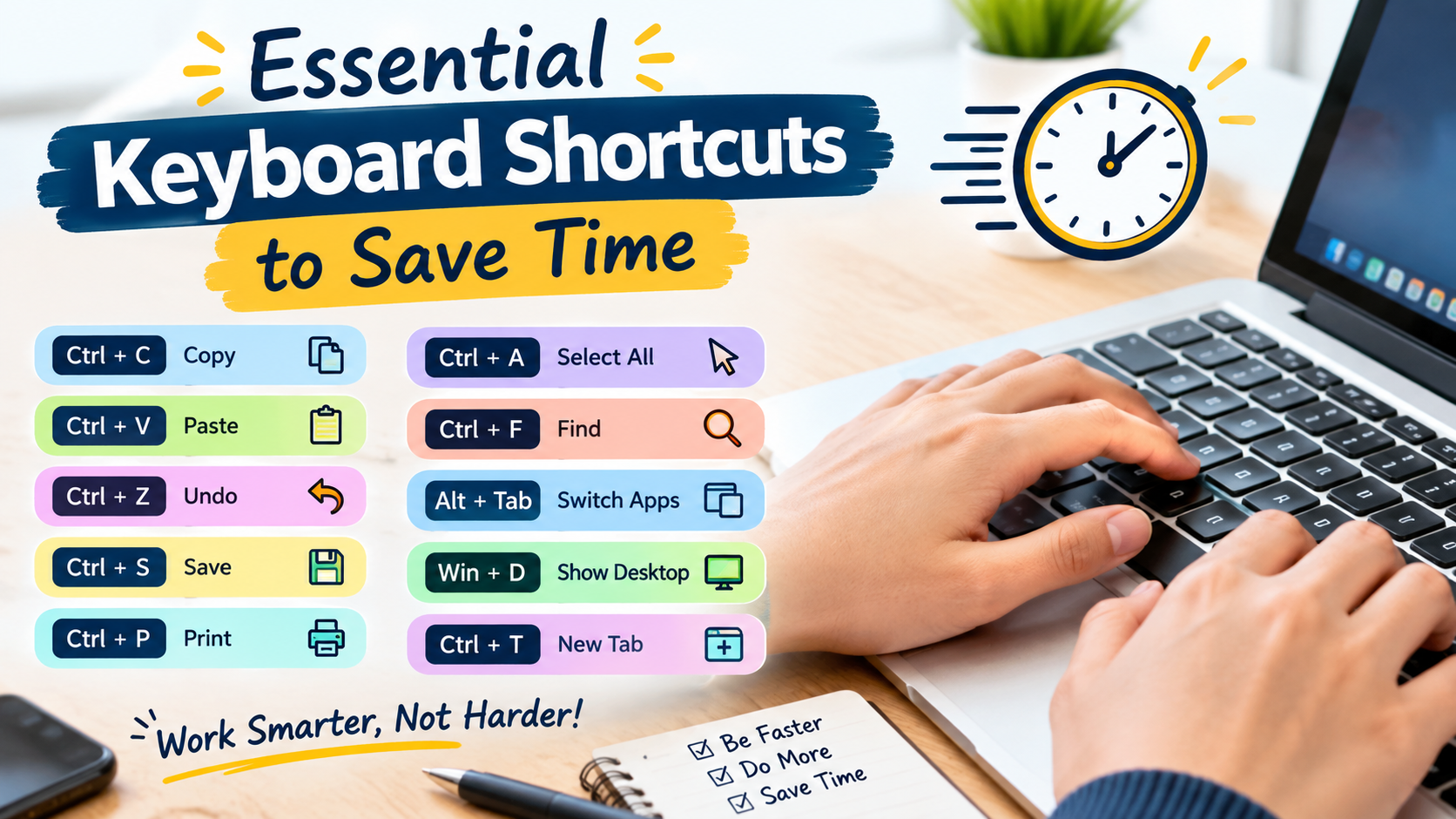
Discover 50+ essential keyboard shortcuts to save time, improve productivity, navigate Windows faster, edit text efficiently, manage files, and browse the web with ease.
In today’s digital world, computers are an important part of work, education, communication, business, and entertainment. Whether you are a student, office employee, freelancer, content creator, developer, or casual computer user, you probably perform many repetitive tasks every day. Opening applications, copying text, switching between windows, saving files, searching for information, and editing documents can take a surprising amount of time when done only with a mouse.
This is where keyboard shortcuts can make a major difference. Keyboard shortcuts are combinations of keys that allow users to perform common actions quickly without navigating through menus or repeatedly using the mouse. Learning even a small number of useful shortcuts can make everyday computer tasks faster, easier, and more convenient.
From basic commands such as Copy, Paste, and Undo to advanced shortcuts for switching applications, managing browser tabs, and working with documents, keyboard shortcuts can improve productivity on Windows and many popular applications.
In this guide, we will explore more than 50 essential keyboard shortcuts, explain what they do, and provide practical tips for learning them.
What Are Keyboard Shortcuts?
Keyboard shortcuts are combinations of two or more keyboard keys that perform a specific command. Instead of moving the mouse to a menu and selecting an option, you can press a shortcut to complete the same task instantly.
For example:
- Ctrl + C copies selected content.
- Ctrl + V pastes copied content.
- Ctrl + S saves your current work.
- Ctrl + Z reverses your last action.
- Alt + Tab switches between open applications.
On Windows computers, the Ctrl, Alt, Shift, and Windows keys are commonly used in shortcuts.
Keyboard shortcuts are especially useful when you perform the same task repeatedly. Over time, they become automatic, allowing you to work faster with fewer interruptions.
Why Keyboard Shortcuts Are Important
Keyboard shortcuts may look like small productivity tricks, but they can save considerable time when used regularly.
1. Save Time
Using a keyboard shortcut is often faster than moving the mouse across the screen, opening a menu, and selecting an option. If you repeat a task dozens of times a day, the saved seconds can add up.
2. Improve Productivity
Shortcuts allow you to focus more on your actual work rather than navigating menus. This can be particularly useful when writing documents, editing spreadsheets, browsing the internet, or coding.
3. Reduce Mouse Dependence
Many computer tasks can be performed entirely from the keyboard. This can make your workflow smoother and more efficient.
4. Make Multitasking Easier
Shortcuts such as Alt + Tab and Windows + Tab make it easier to move between applications and windows.
5. Improve Workflow
Once shortcuts become familiar, common commands can be performed almost automatically. This creates a faster and more comfortable working routine.
Essential Windows Keyboard Shortcuts
If you use a Windows PC or laptop, the following shortcuts are among the most useful ones to learn.
1. Ctrl + C — Copy
Select text, an image, or a file and press Ctrl + C to copy it.
The original content remains in its location while a copy is stored temporarily in the clipboard.
2. Ctrl + V — Paste
Press Ctrl + V to paste copied or cut content.
This shortcut works in documents, browsers, file managers, messaging applications, and many other programs.
3. Ctrl + X — Cut
Use Ctrl + X to remove selected content from its current location and place it on the clipboard.
It is particularly useful when moving text or files.
4. Ctrl + Z — Undo
Made a mistake? Press Ctrl + Z to undo your most recent action.
This is one of the most valuable shortcuts for writing, editing, and document creation.
5. Ctrl + Y — Redo
If you accidentally undo an action, Ctrl + Y can often redo it.
The exact behavior can vary between applications.
6. Ctrl + A — Select All
Press Ctrl + A to select all available content in the current area.
For example, it can select all text in a document or all files in a folder.
7. Ctrl + S — Save
Use Ctrl + S to save your current work.
Developing the habit of pressing this shortcut regularly can help reduce the risk of losing changes.
8. Ctrl + F — Find
Press Ctrl + F to search for a specific word or phrase within a document, webpage, or application.
This can save significant time when working with long documents.
9. Ctrl + P — Print
Press Ctrl + P to open the print dialog in many applications.
You can then select a printer and configure print settings.
10. Ctrl + N — New
In many applications, Ctrl + N creates a new document, window, or similar item.
Its exact function depends on the program you are using.
11. Ctrl + O — Open
Use Ctrl + O to open a file in many applications.
Instead of navigating through the File menu, you can quickly access the Open dialog.
12. Ctrl + W — Close
Press Ctrl + W to close the current document, browser tab, or window in many applications.
Be careful when using it because unsaved work may prompt you to save.
Windows Key Shortcuts
The Windows key provides access to several useful shortcuts.
13. Windows + D — Show Desktop
Press Windows + D to quickly show or hide the desktop.
This is useful when you have several windows open and want quick access to desktop items.
14. Windows + E — Open File Explorer
Press Windows + E to open File Explorer instantly.
This is much faster than searching for File Explorer through the Start menu.
15. Windows + I — Open Settings
Use Windows + I to open Windows Settings.
It provides quick access to system, network, personalization, account, and device settings.
16. Windows + L — Lock Your Computer
Press Windows + L to lock your PC.
This is particularly useful when leaving your computer unattended in an office, classroom, or public environment.
17. Windows + R — Run Dialog
Press Windows + R to open the Run dialog.
You can use it to quickly launch applications or system utilities by entering commands.
18. Windows + S — Search
Press Windows + S to open Windows Search.
You can search for applications, documents, settings, and other information.
19. Windows + Tab — Task View
Press Windows + Tab to open Task View.
It allows you to see open windows and manage virtual desktops.
20. Windows + Shift + S — Screen Snipping
This shortcut opens the Windows screen-snipping interface, allowing you to capture part of your screen.
It is useful for creating screenshots for work, tutorials, reports, and troubleshooting.
Shortcuts for Switching Between Applications
Multitasking becomes much easier when you know how to switch between applications quickly.
21. Alt + Tab — Switch Applications
Press Alt + Tab to switch between open applications.
Hold Alt and press Tab repeatedly to select the application you want.
22. Alt + F4 — Close Current Window
Press Alt + F4 to close the active application or window.
It can also close the current program when you are finished working.
23. Windows + Number — Open or Switch Apps
Pressing Windows + a number can open or switch to an application positioned at that number on the taskbar.
This can be useful for frequently used applications.
Essential Text Editing Shortcuts
If you regularly type emails, articles, reports, assignments, or other documents, text-editing shortcuts can save a lot of time.
24. Ctrl + Left Arrow — Move One Word Left
This shortcut moves the cursor one word at a time toward the left.
25. Ctrl + Right Arrow — Move One Word Right
Use Ctrl + Right Arrow to move the cursor forward one word at a time.
26. Ctrl + Backspace — Delete Previous Word
Instead of deleting one character at a time, Ctrl + Backspace deletes the previous word.
This is particularly useful when correcting sentences.
27. Ctrl + Delete — Delete Next Word
In many text-editing environments, Ctrl + Delete removes the next word.
28. Home — Go to Beginning of Line
Press Home to move the cursor to the beginning of the current line in many applications.
29. End — Go to End of Line
Press End to move the cursor to the end of the current line.
30. Ctrl + Home — Beginning of Document
Press Ctrl + Home to quickly move to the beginning of a document.
31. Ctrl + End — End of Document
Press Ctrl + End to move directly to the end of a document.
Browser Keyboard Shortcuts
Web browsing is another area where keyboard shortcuts can dramatically improve productivity.
32. Ctrl + T — New Tab
Press Ctrl + T to open a new browser tab.
33. Ctrl + Shift + T — Reopen Closed Tab
Accidentally closed a useful tab? Press Ctrl + Shift + T to reopen the most recently closed tab in many browsers.
You can often repeat the shortcut to restore additional recently closed tabs.
34. Ctrl + W — Close Tab
Press Ctrl + W to close the current browser tab.
35. Ctrl + Tab — Next Tab
Use Ctrl + Tab to move to the next open browser tab.
36. Ctrl + Shift + Tab — Previous Tab
Press Ctrl + Shift + Tab to move backward through your open tabs.
37. Ctrl + L — Address Bar
Press Ctrl + L to immediately select the browser’s address bar.
You can then type a website address or search query.
38. Ctrl + R — Refresh
Press Ctrl + R to refresh the current webpage.
39. Ctrl + D — Bookmark Page
Press Ctrl + D to bookmark the current webpage in many browsers.
40. Ctrl + Plus (+) — Zoom In
Press Ctrl + + to increase webpage zoom.
41. Ctrl + Minus (-) — Zoom Out
Press Ctrl + – to decrease webpage zoom.
42. Ctrl + 0 — Reset Zoom
Press Ctrl + 0 to return the webpage to its default zoom level.
File and Folder Shortcuts
Windows users can also use shortcuts to manage files and folders.
43. F2 — Rename
Select a file or folder and press F2 to rename it.
This is faster than right-clicking and selecting Rename.
44. Delete — Move to Recycle Bin
Press Delete after selecting a file or folder to move it to the Recycle Bin.
45. Shift + Delete — Permanently Delete
Shift + Delete can permanently delete a selected file without moving it to the Recycle Bin.
Because the action may make recovery more difficult, use it carefully.
46. Ctrl + Shift + N — New Folder
In Windows File Explorer, Ctrl + Shift + N creates a new folder.
This is convenient when organizing documents or files.
Screenshot and System Shortcuts
Screenshots are useful for documentation, technical support, education, and communication.
47. PrtScn — Screenshot
The Print Screen key can capture the screen, depending on Windows configuration and keyboard setup.
The captured image can then be pasted into an application.
48. Windows + PrtScn — Save Screenshot
On supported Windows systems, Windows + PrtScn captures the screen and saves the screenshot automatically.
49. Ctrl + Shift + Esc — Task Manager
Press Ctrl + Shift + Esc to open Task Manager directly.
Task Manager can help you monitor running applications and system performance.
50. Windows + X — Quick Link Menu
Press Windows + X to open the Quick Link menu, which provides access to various Windows administrative and system tools.
How to Learn Keyboard Shortcuts Faster
Knowing 50 shortcuts is useful, but you do not need to memorize them all at once.
Start With the Basics
Begin with five essential shortcuts:
- Ctrl + C
- Ctrl + V
- Ctrl + X
- Ctrl + Z
- Ctrl + S
Once these become natural, add more shortcuts.
Practice During Normal Work
The best way to learn shortcuts is to use them during your regular computer activities. Instead of using the mouse to copy something, deliberately use Ctrl + C.
Learn Shortcuts by Category
Group shortcuts into categories such as:
- Text editing
- Web browsing
- File management
- Windows navigation
- Application switching
This makes them easier to remember.
Create a Shortcut Cheat Sheet
Keep a small list of your most frequently used shortcuts near your computer. After repeated use, you will gradually remember them without needing the list.
Focus on Frequently Repeated Tasks
If you perform an action dozens of times every day, learn its shortcut first. This provides the biggest productivity benefit.
Keyboard Shortcuts vs. Mouse: Which Is Better?
There is no need to completely stop using your mouse. The most productive approach is usually to combine keyboard shortcuts with mouse navigation.
The keyboard is often faster for repetitive commands such as copying, pasting, saving, searching, and switching applications. The mouse may be more convenient for tasks involving visual selection, graphics, dragging objects, or navigating unfamiliar interfaces.
The goal is not to avoid the mouse completely. Instead, keyboard shortcuts should become another tool in your productivity toolkit.
Common Mistakes When Using Keyboard Shortcuts
Beginners can sometimes make mistakes when learning shortcuts.
One common mistake is pressing the wrong combination. For example, Ctrl + W may close a browser tab or document, so users should understand what the shortcut does before using it repeatedly.
Another mistake is trying to memorize too many shortcuts at once. It is better to learn five useful shortcuts and use them consistently than to memorize dozens and forget them.
Users should also remember that shortcuts can vary between applications. A particular shortcut may perform one function in a browser and another function in a specialized software program.
Benefits of Keyboard Shortcuts for Students and Professionals
Students can use shortcuts to quickly edit assignments, search documents, manage browser tabs, and organize files.
Office professionals can use them for writing emails, preparing reports, working with spreadsheets, and switching between applications.
Content creators can benefit from shortcuts when editing documents, managing files, taking screenshots, and navigating creative software.
Developers can also save significant time because many code editors provide extensive keyboard shortcuts for navigation, editing, searching, and debugging.
Therefore, keyboard shortcuts are useful across almost every type of computer-based work.
Final Tips for Becoming Faster on a Computer
You do not have to learn every keyboard shortcut available. Focus on the commands you use most frequently.
Start with basic shortcuts such as Ctrl + C, Ctrl + V, Ctrl + Z, Ctrl + S, and Ctrl + F. Then learn Windows shortcuts such as Windows + E, Windows + L, Windows + I, and Windows + Shift + S.
For browsing, learn Ctrl + T, Ctrl + W, Ctrl + Shift + T, Ctrl + L, and Ctrl + Tab.
With regular practice, these combinations will become part of your muscle memory. Eventually, you will perform many tasks without consciously thinking about which keys you are pressing.
Sources
https://acesse.one/x7iayxn
https://l1nk.dev/l9sivmc
Conclusion
Keyboard shortcuts are one of the easiest ways to improve computer productivity without installing additional software or changing your hardware. They allow you to perform everyday actions more quickly, reduce unnecessary mouse movements, and make multitasking easier.
From copying and pasting text to switching between applications, managing files, browsing the web, and taking screenshots, there are shortcuts for many common computer tasks. The key is to learn them gradually and practice them during your normal workflow.
Start with the most useful shortcuts, use them consistently, and gradually add more to your routine. Even learning 10 to 15 essential keyboard shortcuts can make everyday computer use noticeably faster and more efficient.
Frequently Asked Questions
1. What are the most important keyboard shortcuts to learn?
Some of the most useful shortcuts include Ctrl + C for Copy, Ctrl + V for Paste, Ctrl + X for Cut, Ctrl + Z for Undo, Ctrl + S for Save, Ctrl + F for Find, Alt + Tab for switching applications, and Ctrl + T for opening a new browser tab.
2. Do keyboard shortcuts work on all computers?
Many common shortcuts work across Windows computers and applications, but specific shortcuts can vary depending on the operating system, software, and keyboard layout. Some applications also have their own specialized shortcuts.
3. How can keyboard shortcuts improve productivity?
Keyboard shortcuts reduce the need to repeatedly move between the keyboard and mouse. They make repetitive tasks faster and can help users navigate documents, applications, websites, and files more efficiently.
4. What is the shortcut for copying and pasting?
On Windows, Ctrl + C copies selected content, while Ctrl + V pastes the copied content. These are among the most commonly used keyboard shortcuts.
5. How long does it take to learn keyboard shortcuts?
Basic shortcuts can often be learned within a few days through regular practice. Becoming comfortable with a larger collection may take several weeks. Consistent daily use is the best way to develop muscle memory.