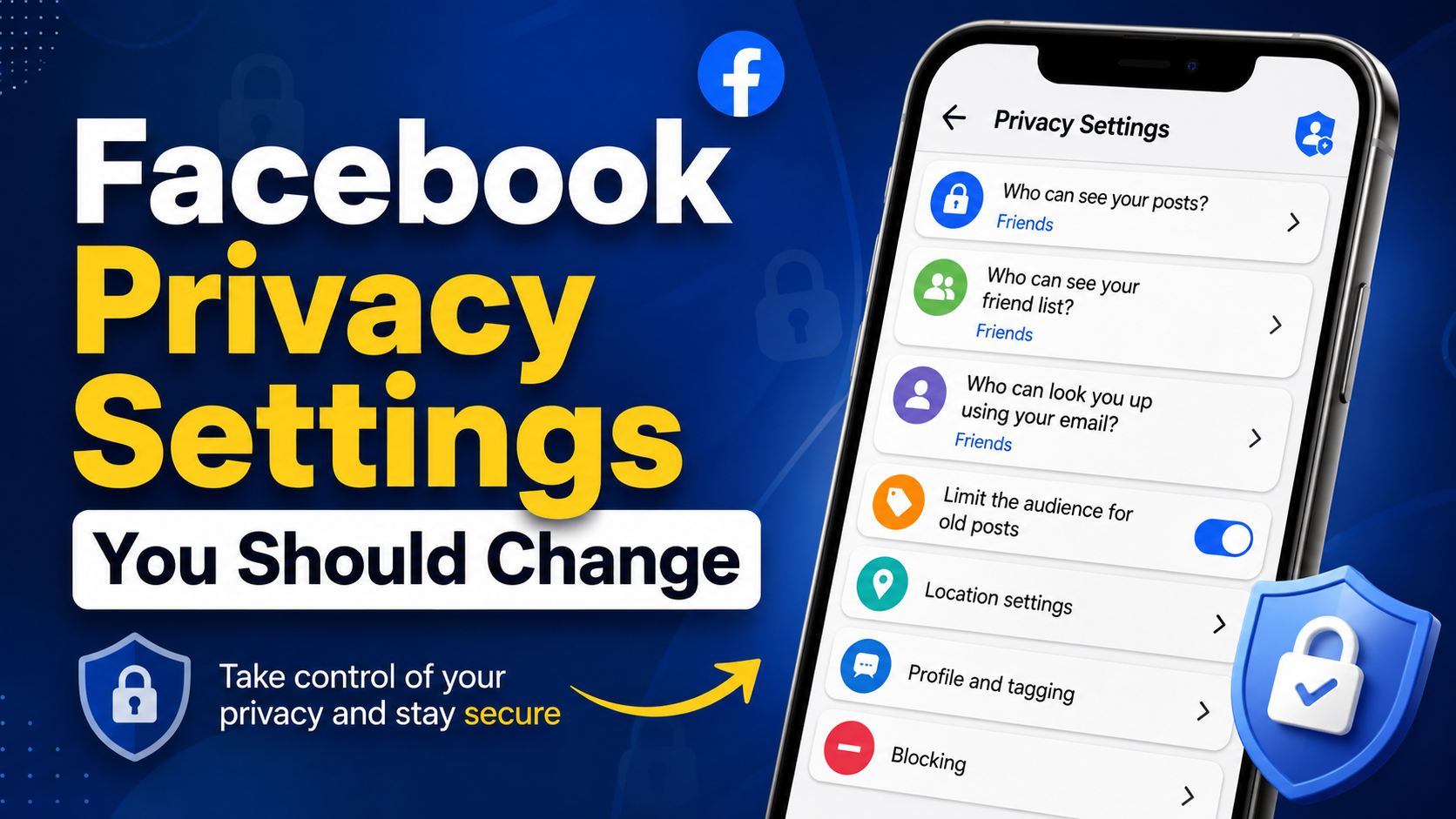
Learn the Facebook privacy settings you should change to protect your personal information, control who can see your posts, limit unwanted messages, secure your account, and improve your privacy.
Facebook is one of the world’s most popular social media platforms. Millions of people use it every day to share photos, post updates, communicate with friends, join groups, watch videos, and connect with businesses and communities. However, many users create their Facebook account and continue using the default settings without checking how much personal information they are sharing.
Your Facebook profile may contain valuable information such as your name, birthday, location, workplace, education, contact details, photographs, friends list, and interests. Depending on your settings, some of this information may be visible to people you do not know.
That is why reviewing your privacy settings is important. You do not need to stop using Facebook to improve your privacy. A few simple changes can significantly reduce unwanted exposure and help you control who can access your information.
In this guide, we will discuss the Facebook Privacy Settings You Should Change, including post visibility, friend requests, profile information, search settings, tagging, app permissions, location access, messaging, and account security.
Why Should You Change Your Facebook Privacy Settings?
Facebook’s default settings are designed to make sharing and connecting easy. However, convenience is not always the same as privacy.
For example, you may unintentionally allow:
- Strangers to see your public posts
- Anyone to send you friend requests
- People to find you using your phone number or email address
- Other users to tag you in posts
- Search engines to link to your profile
- Old posts to remain publicly visible
- Third-party apps to access some account information
- Your location to be shared through certain features
Changing your privacy settings gives you more control over your digital identity.
1. Change Who Can See Your Future Posts
One of the most important Facebook privacy settings is post audience control.
When you create a post, Facebook allows you to select who can see it. Depending on your settings, the audience can include Public, Friends, specific people, or other options.
If most of your posts are personal, consider using Friends instead of Public.
How to review it:
Go to:
Settings & privacy → Settings → Audience and visibility → Posts
Look for the option related to Who can see your future posts?
Choose the audience that best matches your privacy needs.
For personal accounts, “Friends” is generally more private than “Public.”
2. Review Your Past Public Posts
Changing future post settings does not automatically make every old post private.
You may have posted publicly years ago without realizing it. Those posts can continue to be visible depending on their individual audience settings.
Facebook provides tools that can help you review or limit the audience of older posts.
Look under:
Settings & privacy → Settings → Audience and visibility → Posts
Check the available options for limiting the audience of older posts.
This is particularly useful if you have been using Facebook for many years.
3. Limit Who Can Send You Friend Requests
You do not necessarily want every Facebook user to be able to send you a friend request.
Facebook provides an option to control who can send you friend requests. You may be able to choose between broader and more limited options.
Go to:
Settings & privacy → Settings → Audience and visibility → How people find and contact you
Review the setting for:
Who can send you friend requests?
If available for your account, choosing a more limited option can reduce requests from people you do not know.
4. Control Who Can Find You Using Your Phone Number or Email
Your phone number and email address can be used as ways to find your Facebook profile.
If you prefer greater privacy, review who can find you using these details.
Go to:
Settings & privacy → Settings → Audience and visibility → How people find and contact you
Review the settings related to people finding you using:
- Email address
- Phone number
- Other profile information
Choose the most restrictive option that still works for how you use Facebook.
5. Restrict Search Engine Linking to Your Profile
Search engines can sometimes provide a way for people to discover your Facebook profile.
If you do not want your Facebook profile easily connected to search engine results, review the setting that controls whether search engines outside Facebook can link to your profile.
Look under:
Settings & privacy → Settings → Audience and visibility → How people find and contact you
Find the option related to search engines outside Facebook linking to your profile.
If privacy is your priority, consider turning this option off.
6. Review Your Profile Information
Your Facebook profile may display information such as:
- Birthday
- Phone number
- Email address
- Workplace
- Education
- Current city
- Hometown
- Relationship information
- Family members
You should review every piece of information on your profile and decide whether it really needs to be public.
For sensitive information, consider limiting visibility to Friends or Only me, where those options are available.
Remember that you do not have to publish every detail about yourself simply because Facebook gives you a field for it.
7. Protect Your Birthday and Personal Details
Your birthday may appear harmless, but personal details can contribute to your digital footprint.
Instead of making your complete birthday publicly visible, consider limiting who can see it.
You can review this from your profile’s information and audience controls.
It is also a good idea to avoid publicly displaying unnecessary information such as your full home address or other highly personal details.
8. Control Who Can Tag You in Posts
Tagging can create privacy problems because another person can mention you in a post or photograph.
Facebook provides controls for reviewing tags before they appear on your profile.
Look under:
Settings & privacy → Settings → Audience and visibility → Profile and tagging
Review options related to:
- Who can post on your profile
- Who can see posts you’re tagged in
- Reviewing posts you’re tagged in
- Reviewing tags people add to your posts
Turning on tag review can give you more control over what appears on your profile.
9. Control Who Can Post on Your Profile
If you allow friends to post directly on your profile, those posts may become visible to people who can view your profile.
Go to:
Settings & privacy → Settings → Audience and visibility → Profile and tagging
Review:
Who can post on your profile?
If you want maximum control, choose the option that prevents other people from posting directly to your profile, if available.
10. Review Your Followers and Public Content
Facebook may allow people who are not your friends to follow you depending on your account configuration.
If you share public content, followers may be able to see those posts.
Review your follower and public-content settings and decide whether you actually need people outside your friend list to follow your updates.
This is especially important for users who mainly use Facebook for personal communication rather than public content creation.
11. Review Apps and Websites Connected to Facebook
Many people use Facebook to sign in to third-party websites, apps, or games.
Over time, you may have connected dozens of services that you no longer use.
These connections can potentially have access to information depending on the permissions you granted.
Go to:
Settings & privacy → Settings → Apps and websites
Review the apps and websites connected to your Facebook account.
Remove services you no longer use or do not recognize.
Before removing an app, remember that you may need to create a separate login for that service if Facebook was your only sign-in method.
12. Check Location-Related Permissions
Location information can reveal where you are or where you have been.
Facebook and related services may use location information for certain features depending on your device and permissions.
Review Facebook’s location permission in your phone’s operating-system settings.
On your smartphone, you can generally go to:
Settings → Apps → Facebook → Permissions → Location
The exact steps vary between Android and iPhone.
If you do not need location access, consider choosing a more restrictive permission option available on your device.
13. Review Your Messenger Privacy Settings
Facebook Messenger has its own privacy and communication controls.
Depending on your settings, people who are not your Facebook friends may be able to send you message requests.
Review Messenger’s controls for:
- Message requests
- Who can contact you
- Blocked accounts
- Restricted accounts
- Spam messages
If you regularly receive unwanted messages, reviewing these options can help reduce interruptions and unwanted contact.
14. Turn On Two-Factor Authentication
Privacy and security go together.
Even if your Facebook profile is private, someone who gains access to your password could potentially access your account.
That is why two-factor authentication (2FA) is one of the most important security settings you should enable.
Facebook supports security methods that can add another verification step when you log in.
Go to:
Settings & privacy → Settings → Accounts Center → Password and security
Look for Two-factor authentication.
Follow Facebook’s instructions to set it up.
A second authentication method can provide an additional layer of protection if someone obtains your password.
15. Check Where You’re Logged In
If you have used Facebook on multiple phones, computers, tablets, or browsers, some old sessions may still be active.
Facebook allows you to review devices and locations where your account is logged in.
Go to:
Settings & privacy → Settings → Accounts Center → Password and security → Where you’re logged in
Review the list carefully.
If you see a device or session you do not recognize, log it out and change your password if necessary.
This is especially important if you have previously logged into Facebook on a shared or public computer.
16. Create a Strong and Unique Password
Your Facebook password should not be the same password you use for other websites.
A strong password should be:
- Long
- Difficult to guess
- Unique to Facebook
- Free from easily guessed personal information
Avoid passwords based on your name, birthday, phone number, or simple patterns.
Using a reputable password manager can also make it easier to create and store unique passwords.
17. Review Your Privacy Checkup
If you are unsure which Facebook settings need attention, use Facebook’s Privacy Checkup feature.
Privacy Checkup is designed to help users review important privacy and security choices in one place.
It can help you examine areas such as:
- Who can see what you share
- How people can find you
- Account security
- Connected apps
- Privacy-related settings
This is one of the easiest ways to perform a general Facebook privacy review.
18. Be Careful With Public Groups and Comments
Changing your profile privacy settings does not mean everything you do on Facebook becomes private.
If you participate in public groups, comments or posts may be visible to a much wider audience.
Before posting in a public group, ask yourself:
Would I be comfortable if a stranger saw this?
Avoid sharing sensitive information such as:
- Home address
- Financial information
- Passwords
- Personal identification numbers
- Travel details that reveal your absence from home
- Private family information
Good privacy habits are just as important as technical settings.
19. Review Your Friends List Regularly
Over time, your Facebook friends list can become much larger than you originally intended.
You may have added:
- Former classmates
- Previous coworkers
- Online acquaintances
- Unknown people
- Accounts you no longer recognize
Consider reviewing your friends list periodically.
If you do not know someone or no longer want to share personal posts with them, you can remove them from your friends list or use Facebook’s available privacy controls.
20. Use Facebook’s Blocking and Restricting Features
If someone is repeatedly bothering you, Facebook provides tools such as blocking and restricting.
Blocking can prevent an account from interacting with you in various ways.
The Restricted feature can also be useful when you want to limit what a particular friend can see without completely removing them from your friends list.
These tools are useful for managing unwanted interactions while maintaining control over your account.
A Simple Facebook Privacy Checklist
Use this checklist to review your account:
☑ Set future posts to Friends when appropriate
☑ Review old public posts
☑ Limit unwanted friend requests
☑ Review phone and email discoverability
☑ Disable search engine linking if you prefer
☑ Hide unnecessary profile information
☑ Review birthday visibility
☑ Enable tag review
☑ Control profile posts
☑ Review followers and public posts
☑ Remove unused connected apps
☑ Review location permissions
☑ Check Messenger privacy settings
☑ Enable two-factor authentication
☑ Review logged-in devices
☑ Use a unique password
☑ Run Privacy Checkup regularly
☑ Review your Facebook friends list
☑ Use Block or Restrict when necessary
How Often Should You Check Facebook Privacy Settings?
You do not need to check your privacy settings every day.
A review every three to six months is a good habit. You should also review them whenever Facebook introduces major changes to its privacy features or when you install a new app, change your phone, or notice unusual account activity.
Privacy is not a one-time task. Your account, contacts, apps, and Facebook’s features can change over time.
Sources
Meta Privacy Center
Meta Help Center
Conclusion
Facebook can be a useful platform for staying connected, but you should not assume that the default settings provide the level of privacy you want.
The Facebook Privacy Settings You Should Change include controls for post visibility, profile information, friend requests, search discoverability, tagging, apps, location permissions, Messenger, and account security. Taking a few minutes to review these settings can give you much greater control over your personal information.
The most important steps are to limit unnecessary public information, review old posts, control who can contact and find you, remove unused apps, enable two-factor authentication, and regularly check where your account is logged in.
Remember that online privacy is an ongoing process. Facebook may change its features and settings over time, so make privacy reviews part of your regular digital-security routine.
Frequently Asked Questions
1. What are the most important Facebook privacy settings to change?
The most important settings include post visibility, profile information visibility, friend requests, search discoverability, tagging, connected apps, Messenger controls, two-factor authentication, and logged-in devices.
2. How can I make my Facebook account more private?
Start by limiting your future posts to Friends, reviewing your profile information, controlling who can find you, enabling tag review, removing unused apps, and checking your Messenger and security settings.
3. Can I make all my Facebook posts private?
You can control the audience of individual posts and use Facebook’s available tools to limit the audience of older posts. However, some content shared in public spaces may still have broader visibility.
4. Should I enable two-factor authentication on Facebook?
Yes. Two-factor authentication adds another layer of security to your account and can help protect it if someone obtains your password.
5. How often should I review Facebook privacy settings?
Reviewing your settings every three to six months is a useful habit. You should also check them after major Facebook updates or whenever you notice unusual account activity.