
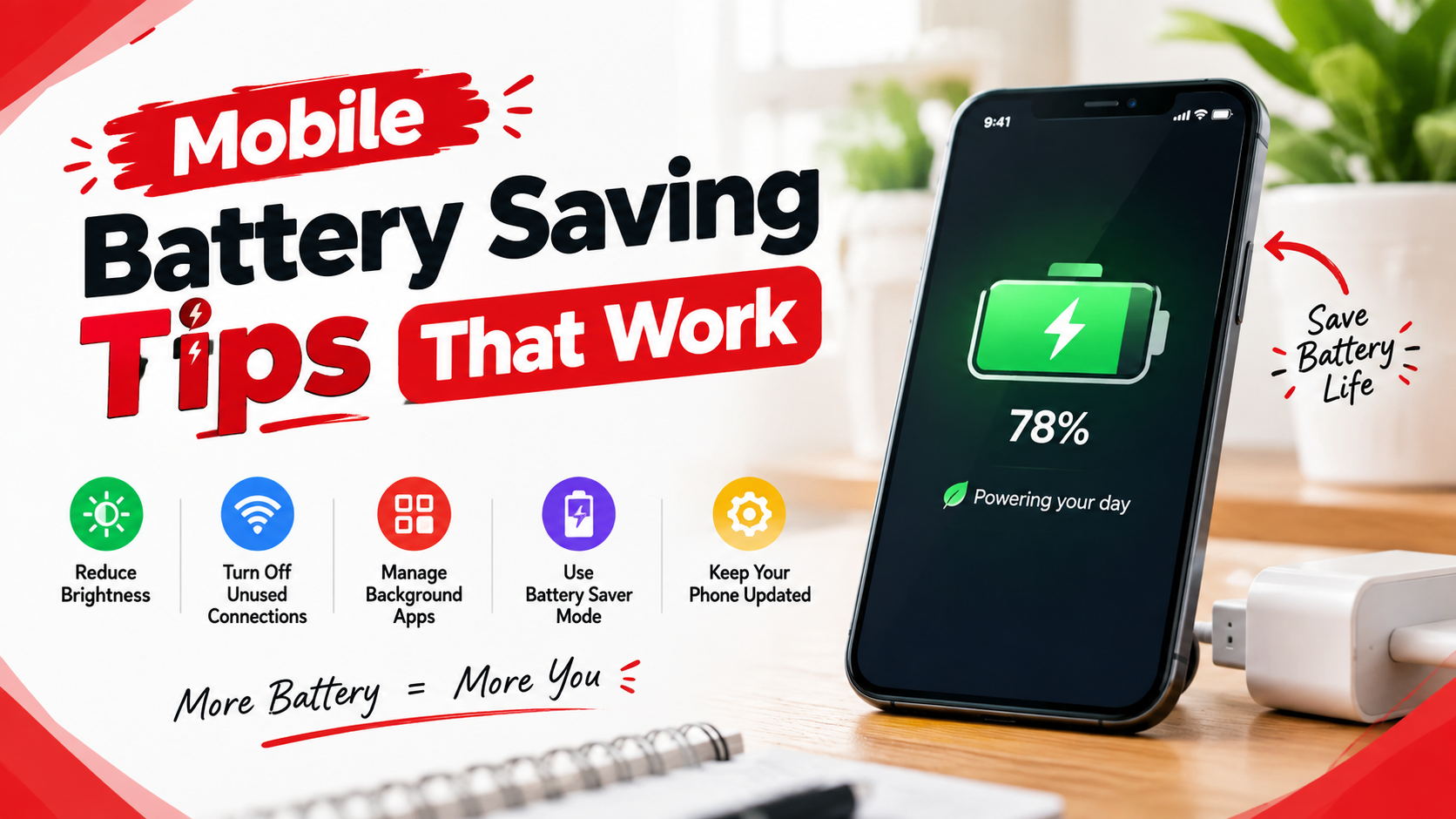
Discover practical mobile battery saving tips that work. Learn how to reduce battery drain, improve battery life, manage apps, optimize charging, and keep your smartphone running longer.
Smartphones have become an essential part of everyday life. We use them for communication, online shopping, banking, social media, entertainment, navigation, work, study, photography, and much more. However, one common problem almost every smartphone user experiences is battery drain.
A phone that loses its battery quickly can become frustrating, especially when you are away from a charger. Fortunately, you do not always need a new battery or a new smartphone to improve battery life. By changing a few settings and developing better charging and usage habits, you can make your phone battery last much longer throughout the day.
In this article, we will discuss practical mobile battery saving tips that work on both Android and iPhone devices. These tips can help reduce unnecessary battery consumption while keeping your smartphone useful and responsive.
1. Reduce Screen Brightness
The display is one of the biggest sources of battery consumption on most smartphones. A bright screen requires more power, particularly when you use your phone for long periods.
Instead of keeping your brightness at maximum, use a comfortable lower brightness level. You can also enable automatic or adaptive brightness if your phone supports it.
Automatic brightness adjusts the screen according to surrounding light. This means the display can become brighter outdoors and dimmer indoors without requiring you to change it manually.
Reducing screen brightness is one of the easiest mobile battery saving tips because it does not require you to install an application or change your phone habits significantly.
2. Turn On Battery Saver Mode
Most modern smartphones include a built-in battery-saving mode.
On Android devices, it may be called Battery Saver, while iPhones provide Low Power Mode. These modes reduce certain background activities and performance features to help extend battery life.
Battery Saver may restrict background data, reduce synchronization, limit visual effects, and reduce some performance-intensive activities.
You do not necessarily need to keep battery-saving mode enabled all the time. It is particularly useful when your battery percentage becomes low and you need your phone to remain available for longer.
3. Reduce Screen Timeout
Another simple way to save battery is to reduce the amount of time your screen stays active when you stop using the phone.
If your screen remains on for several minutes after you put the phone down, it wastes energy unnecessarily.
Set your screen timeout to a short but convenient period, such as 30 seconds or one minute.
For example, if you frequently check messages and immediately put your phone away, a 30-second screen timeout can prevent the display from staying active unnecessarily.
4. Disable Always-On Display When You Do Not Need It
Many newer smartphones have an Always-On Display feature that shows the time, notifications, battery status, or other information even when the main screen is turned off.
Although modern displays are designed to make this feature relatively efficient, it still consumes some battery power.
If you are trying to maximize battery life, consider disabling Always-On Display or configuring it to appear only during specific periods.
This can be particularly useful if you are traveling and need your battery to last as long as possible.
5. Turn Off Unnecessary Location Services
Location services allow applications to determine your approximate or precise location. They are useful for navigation, weather, ride-sharing, maps, and other services.
However, allowing every application to access your location continuously can increase battery usage.
Review which applications have location permission and choose options such as:
- Never
- Ask Next Time
- While Using the App
- Always
Whenever possible, allow location access only when an application actually needs it.
This is not only helpful for battery life but can also improve your privacy.
6. Limit Background App Activity
Some applications continue working even when you are not actively using them. They may refresh content, check for notifications, synchronize information, or use location services in the background.
If you have many applications installed, unnecessary background activity can contribute to battery drain.
Check your phone’s battery settings to identify applications that are consuming significant power. If an application uses unusually high battery in the background, consider restricting its background activity or adjusting its permissions.
Do not disable essential background activity for applications where you need timely notifications.
7. Turn Off Bluetooth When You Are Not Using It
Bluetooth is useful for connecting wireless headphones, smartwatches, speakers, keyboards, cars, and other devices.
However, if you are not using Bluetooth, turning it off can reduce unnecessary wireless activity.
If you regularly use Bluetooth accessories, you do not have to disable it constantly. Instead, focus on turning it off when you know you will not need it for an extended period.
8. Manage Wi-Fi and Mobile Data Wisely
Your smartphone constantly communicates with networks to maintain connectivity. In areas with a weak cellular signal, the phone may use more power as it attempts to maintain a connection.
When you have access to reliable Wi-Fi, connecting to Wi-Fi can sometimes be more efficient than relying on mobile data.
If you are traveling through an area with extremely poor network coverage and do not need connectivity, Airplane Mode can be useful temporarily.
However, remember that Airplane Mode disables cellular communication, so calls and mobile data will not work until you turn the required connections back on.
9. Avoid Unnecessary Push Notifications
Notifications can wake your screen, activate sounds or vibrations, and cause applications to perform background activity.
Having notifications enabled for every application can therefore contribute to unnecessary battery consumption.
Review your notification settings and disable notifications that you do not need.
For example, you may not need instant notifications from shopping applications, games, promotional services, or less important social media accounts.
Keeping only useful notifications can make your phone quieter and potentially reduce battery usage.
10. Use Dark Mode on Suitable Displays
Dark Mode changes supported applications and system interfaces from lighter backgrounds to darker ones.
On phones with OLED or AMOLED displays, displaying black pixels can require less power than displaying bright pixels. Therefore, Dark Mode can contribute to battery savings, especially when the phone is used frequently.
The battery benefit varies depending on the display technology, brightness level, application design, and usage pattern.
Even when the battery benefit is small, Dark Mode may make the screen more comfortable for some users, especially in low-light environments.
11. Reduce Unnecessary Vibration
Vibration uses a small motor inside your smartphone. While vibration does not usually consume as much power as the display, frequent vibrations can add to overall battery usage.
If your phone vibrates for every keyboard tap, notification, call, and message, consider disabling unnecessary vibration features.
You can keep vibration enabled for important calls or alerts while turning off less useful haptic feedback.
12. Avoid Excessive Gaming and Video Streaming
Gaming, video streaming, video recording, and other demanding activities can consume a large amount of battery.
High-performance games require significant processing power and may also use the display, speakers, internet connection, and graphics processor simultaneously.
Similarly, watching high-resolution videos for several hours can quickly reduce battery percentage.
If battery life is your priority, reduce screen brightness, lower video quality when appropriate, and avoid unnecessary high-performance activities when your battery is already low.
13. Keep Your Phone at a Comfortable Temperature
Extreme temperatures can negatively affect smartphone batteries.
Very high temperatures can accelerate battery aging, while extremely cold conditions can temporarily reduce battery performance.
Avoid leaving your smartphone in direct sunlight, inside a hot vehicle, or near strong sources of heat.
During intensive activities such as gaming or charging, your phone may become warm. If it becomes unusually hot, stop demanding activities and allow the device to cool naturally.
Do not deliberately place a hot phone in a freezer or use extreme cooling methods.
14. Use the Original or Reliable Charger
Using a suitable charger and cable is important for safe and efficient charging.
Whenever possible, use the charger supplied by the phone manufacturer or a reputable charger that meets the appropriate charging standards.
Poor-quality accessories may cause charging problems and can potentially create safety risks.
Fast charging is convenient, but you do not need to use maximum charging speed for every charging session. If you are charging overnight or have plenty of time, a standard charging method may be sufficient.
15. Keep Your Phone’s Software Updated
Software updates can include performance improvements, bug fixes, security patches, and power-management improvements.
Keeping your operating system and applications reasonably up to date can therefore help your phone operate efficiently.
However, after a major operating system update, temporary battery drain can sometimes occur while the device completes background tasks such as indexing and synchronization.
If battery consumption remains unusually high for an extended period after an update, check your battery settings to identify the application or feature responsible.
16. Remove or Restrict Battery-Hungry Apps
Some applications naturally use more battery than others.
Social media, navigation, video editing, streaming, gaming, and camera applications can be particularly demanding.
Your smartphone’s battery settings usually provide information about which apps have consumed the most energy.
If an application you rarely use appears near the top of the list, consider uninstalling it or restricting its background activity.
Removing unnecessary applications can also free storage space and reduce unwanted notifications.
17. Turn Off Unnecessary Widgets and Live Wallpapers
Widgets provide useful information directly on your home screen, but some widgets regularly refresh their content.
Similarly, animated or live wallpapers may consume additional processing resources.
If you are trying to maximize battery life, use fewer widgets and choose a simple static wallpaper.
You do not have to remove every widget. Keep the ones that genuinely help you and eliminate those you rarely check.
18. Use Airplane Mode When You Need Maximum Battery Saving
Airplane Mode is one of the most effective temporary battery-saving options because it disables cellular communication and other wireless connections.
It is particularly useful when:
- You are on an airplane.
- You are sleeping and do not need connectivity.
- You are in an area with extremely poor network coverage.
- You need your phone to remain powered on for an emergency.
- You are reading an offline document or watching downloaded content.
You can manually turn Wi-Fi or Bluetooth back on afterward if your device allows it.
19. Avoid Constantly Closing Every App
Many people believe that closing every application from the recent-apps screen always saves battery.
In reality, repeatedly forcing applications to close and then reopening them can sometimes require more processing than allowing the operating system to manage them.
Modern Android and iOS systems are designed to manage application resources automatically.
Instead of constantly closing everything, focus on applications that are actually causing excessive battery consumption.
20. Check Battery Health Regularly
Battery capacity naturally decreases over time.
If your smartphone is several years old and the battery drains significantly faster than it used to, the problem may not be your settings. The battery itself may have lost a considerable portion of its original capacity.
Both Android and iPhone devices provide varying levels of battery information depending on the manufacturer and model.
If your battery health is significantly degraded, replacing the battery through an authorized or reputable service provider may provide a much bigger improvement than changing dozens of settings.
21. Reduce Unnecessary Screen Usage
One of the most effective battery-saving strategies is also the simplest: use the screen less.
Instead of repeatedly unlocking your phone to check notifications, consider using notification summaries, a smartwatch, or other available features where appropriate.
You can also download music, podcasts, or videos when you have Wi-Fi so that you do not need to continuously stream them using mobile data.
Small reductions in screen-on time can make a noticeable difference over an entire day.
22. Use Battery-Saving Habits While Traveling
Battery management becomes especially important while traveling because you may not always have access to a power outlet.
Before leaving, charge your phone sufficiently and consider carrying a reliable power bank.
You can also:
- Reduce screen brightness.
- Download maps for offline use.
- Disable unnecessary notifications.
- Turn off unnecessary wireless connections.
- Use Battery Saver or Low Power Mode.
- Avoid high-performance gaming.
- Keep the phone away from extreme heat.
- Reduce unnecessary photography and video recording when battery is critically low.
These simple steps can help keep your phone available when you need navigation, communication, tickets, or emergency information.
23. Do Not Rely on Battery-Saving Apps
Many third-party applications claim to dramatically improve battery life by closing apps or optimizing your phone.
Modern smartphones already include sophisticated power-management systems. Installing another application to constantly monitor or close processes can sometimes consume additional resources.
Instead of relying on a battery-saving app, first use the built-in battery settings provided by your smartphone manufacturer.
These settings can usually show battery usage, background activity, power-saving options, and battery health information.
24. Charge Your Phone Smartly
Modern smartphone batteries are generally based on lithium-ion or lithium-polymer technology. You do not need to completely drain the battery to zero before charging it.
Avoid making a habit of allowing the phone to reach 0% repeatedly.
Similarly, keeping a phone at extremely high charge levels for long periods, particularly under high temperatures, can contribute to battery aging.
If your smartphone offers optimized or adaptive charging features, consider enabling them. These features are designed to manage charging patterns in ways that can help reduce long-term battery wear.
25. Find the Biggest Battery Drainers First
Instead of changing every setting on your phone, start by checking which features and applications consume the most battery.
Open your phone’s battery settings and review the usage list.
If the display is responsible for a large percentage of battery usage, reduce brightness and screen-on time.
If a particular application is consuming excessive background power, review its permissions or uninstall it if you do not need it.
If poor cellular reception is a recurring problem, consider using Wi-Fi when available.
This approach is more effective because you are addressing the actual source of your battery drain rather than making random changes.
Quick Mobile Battery Saving Checklist
For everyday use, remember these simple tips:
- Lower screen brightness.
- Reduce screen timeout.
- Enable Battery Saver or Low Power Mode when needed.
- Turn off unnecessary location access.
- Restrict battery-hungry background apps.
- Disable unnecessary Bluetooth and Wi-Fi activity.
- Reduce unwanted notifications.
- Use Dark Mode on OLED/AMOLED screens.
- Avoid extreme temperatures.
- Keep your software updated.
- Use reliable charging accessories.
- Check battery health.
- Reduce unnecessary screen time.
- Avoid excessive gaming and streaming.
- Use Airplane Mode when connectivity is unnecessary.
- Use optimized charging features when available.
Sources
Apple – Maximizing Battery Life and Lifespan
Google Pixel Help – Fix battery drain problems
Conclusion
Saving smartphone battery does not require complicated techniques. The most effective approach is to identify what is consuming the most power and adjust your settings accordingly.
Reducing screen brightness and screen-on time, controlling background applications, managing location services, limiting unnecessary notifications, and using built-in battery-saving modes can make a noticeable difference in everyday battery life.
It is also important to remember that battery capacity naturally decreases with age. If your phone is several years old and continues to drain quickly even after optimization, the battery itself may need professional assessment or replacement.
The best mobile battery saving tips that work are the ones you can follow consistently. By combining smart settings with good charging and usage habits, you can extend daily battery life and potentially improve the long-term health of your smartphone battery.
FAQs
1. What is the best way to save mobile battery?
Reducing screen brightness and screen-on time is one of the most effective ways to reduce battery consumption. You should also manage background apps, location services, notifications, and wireless connections.
2. Does Battery Saver really work?
Yes. Battery Saver or Low Power Mode can reduce certain background activities and performance-related features, helping your phone last longer when the battery is low.
3. Does Dark Mode save battery?
Dark Mode can save battery on OLED and AMOLED displays because darker pixels can require less power. The amount of savings depends on the phone, display, brightness, and applications being used.
4. Is it bad to let a phone battery reach 0%?
Repeatedly allowing a smartphone battery to completely discharge is generally not ideal for long-term battery health. It is better to recharge the phone before it reaches critically low levels whenever practical.
5. Why does my phone battery drain so quickly?
Common causes include high screen brightness, excessive screen time, demanding applications, background activity, poor cellular signal, location services, streaming, gaming, and an aging battery. Checking your phone’s battery-usage settings can help identify the main cause.