
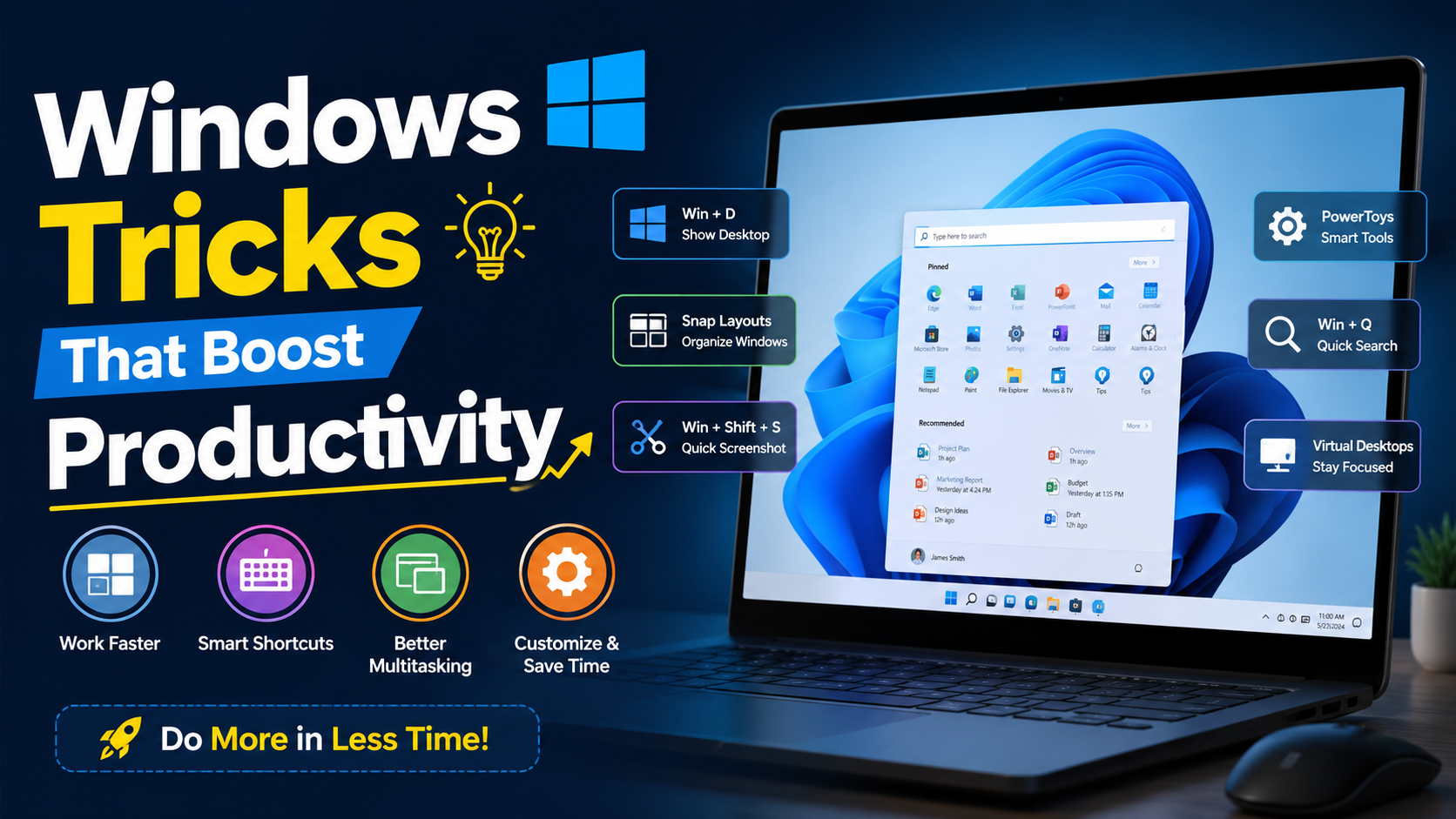
Discover the best Windows tricks that boost productivity. Learn hidden shortcuts, multitasking features, automation tips, and settings to save time and improve your workflow.
Whether you’re a student, office worker, freelancer, or business owner, your computer plays a significant role in your daily routine. Many Windows users only utilize a small portion of the operating system’s capabilities, unaware of the numerous hidden features designed to save time and simplify everyday tasks.
Learning a few Windows productivity tricks can dramatically improve your workflow. From mastering keyboard shortcuts to organizing your desktop and automating repetitive tasks, these techniques help you work smarter instead of harder.
In this guide, you’ll discover practical Windows tricks that boost productivity, reduce distractions, and help you accomplish more in less time.
Why Productivity Matters in Windows
Modern work requires switching between multiple applications, managing files, attending online meetings, browsing the web, and responding to emails simultaneously. Without proper organization, these tasks consume valuable time.
Using built-in Windows features allows you to:
- Complete tasks faster
- Reduce unnecessary mouse clicks
- Improve multitasking
- Stay organized
- Minimize distractions
- Increase efficiency throughout the day
The best part is that most of these features are already built into Windows 10 and Windows 11.
1. Master Essential Keyboard Shortcuts
Keyboard shortcuts are one of the easiest ways to improve productivity.
Some must-know shortcuts include:
| Shortcut | Function |
|---|---|
| Windows + D | Show desktop |
| Windows + E | Open File Explorer |
| Windows + L | Lock your PC |
| Windows + V | Clipboard History |
| Windows + Shift + S | Screenshot tool |
| Alt + Tab | Switch between apps |
| Ctrl + Shift + Esc | Open Task Manager |
| Windows + Tab | Task View |
Learning just a handful of shortcuts can save several minutes every day.
2. Enable Clipboard History
Many users repeatedly copy and paste text without realizing Windows can remember multiple copied items.
Enable Clipboard History:
Settings → System → Clipboard → Turn on Clipboard History
Then press:
Windows + V
You’ll see previously copied text, links, and images.
This feature is especially useful for writers, programmers, students, and office professionals.
3. Use Snap Layouts for Better Multitasking
Windows 11 introduced Snap Layouts, making multitasking much easier.
Hover over the maximize button to choose different layouts.
Examples include:
- Two windows side by side
- Three-column workspace
- Four-window grid
This keeps your work organized without manually resizing every window.
4. Create Multiple Virtual Desktops
Instead of cluttering one desktop with dozens of windows, create separate desktops for different tasks.
Example:
Desktop 1:
- Work
Desktop 2:
- Personal browsing
Desktop 3:
- Entertainment
Shortcut:
Windows + Ctrl + D
Switch desktops using:
Windows + Ctrl + Left/Right Arrow
5. Pin Frequently Used Apps
Instead of searching every time, pin your favorite applications.
Pin to:
- Start Menu
- Taskbar
Examples:
- Microsoft Word
- Excel
- Chrome
- Outlook
- Visual Studio Code
- Adobe Photoshop
Launching applications becomes almost instantaneous.
6. Customize Quick Access in File Explorer
File Explorer’s Quick Access section can save considerable time.
Pin folders like:
- Documents
- Downloads
- Projects
- Images
- Client Files
Instead of navigating through multiple folders, everything stays one click away.
7. Use Focus Sessions
Windows includes Focus Sessions to reduce distractions.
Features include:
- Timer
- Break reminders
- Task management
- Microsoft To Do integration
Ideal for:
8. Search Faster with Windows Search
Press:
Windows Key
Start typing immediately.
Search for:
- Apps
- Settings
- Files
- Calculator
- Documents
- Control Panel
- Web searches
Avoid manually browsing menus.
9. Organize Files with Libraries and Folders
A clean folder structure improves productivity.
Example:
Projects
- Client A
- Client B
- Reports
- Presentations
- Archives
Naming files consistently also helps locate documents quickly.
Example:
Project_Report_July_2026.docx
Instead of:
New Document (8).docx
10. Use Storage Sense
Storage Sense automatically removes:
- Temporary files
- Recycle Bin contents
- Old downloads (optional)
Enable:
Settings
System
Storage
Storage Sense
This keeps your PC running smoothly.
11. Automate with Power Automate
Microsoft Power Automate helps automate repetitive tasks.
Examples:
- Rename files
- Send emails
- Move documents
- Backup folders
- Create reminders
Automation reduces repetitive work significantly.
12. Use Dark Mode
Dark Mode reduces eye strain during long working hours.
Enable:
Settings
Personalization
Colors
Choose Dark
Many users find it easier to concentrate while using Dark Mode.
13. Take Better Screenshots
Instead of Print Screen alone, use:
Windows + Shift + S
You can capture:
- Entire screen
- Rectangle
- Free-form
- Active window
Images are automatically copied to the clipboard.
14. Manage Startup Apps
Too many startup applications slow your PC.
Check:
Task Manager
Startup Apps
Disable unnecessary applications such as:
- Game launchers
- Music apps
- Chat software
- Update utilities
Your PC will boot much faster.
15. Use File Explorer Tabs
Windows 11 now supports tabs inside File Explorer.
Benefits include:
- Easier file management
- Fewer windows
- Better organization
- Faster navigation
It’s similar to browsing with multiple tabs in a web browser.
16. Quickly Rename Multiple Files
Select several files.
Press:
F2
Rename the first file.
Windows automatically numbers the remaining files.
Example:
Vacation (1)
Vacation (2)
Vacation (3)
Perfect for organizing photos and documents.
17. Record Your Screen
Need to create tutorials or presentations?
Use:
- Xbox Game Bar
- Snipping Tool (latest versions)
- Microsoft Clipchamp
Shortcut:
Windows + G
Ideal for:
- Online training
- Bug reporting
- Educational videos
18. Use Widgets Wisely
Widgets provide quick access to:
- Weather
- Calendar
- News
- To-do lists
- Traffic
Keeping important information visible reduces time spent opening multiple apps.
19. Learn Command Palette and Windows Terminal
Advanced users can speed up workflows using Windows Terminal.
Benefits include:
- Multiple command-line tabs
- PowerShell
- Command Prompt
- Linux (WSL)
Developers and IT professionals can execute commands much faster than navigating graphical interfaces.
20. Keep Windows Updated
Regular updates improve:
- Security
- Performance
- Stability
- Compatibility
Schedule updates outside working hours to avoid interruptions.
Bonus Productivity Habits
Besides Windows features, these habits can further improve efficiency:
- Keep only essential desktop icons.
- Use cloud storage for important files.
- Back up data regularly.
- Restart your PC occasionally.
- Close unused browser tabs.
- Use password managers.
- Keep software updated.
- Minimize notifications during focused work.
- Use dual monitors if possible.
- Learn one new shortcut every week.
Common Productivity Mistakes
Avoid these common habits:
- Saving everything on the desktop
- Opening dozens of browser tabs
- Ignoring Windows updates
- Installing unnecessary startup apps
- Not organizing files
- Working without keyboard shortcuts
- Forgetting regular backups
- Keeping too many background applications running
Small improvements in these areas can lead to significant productivity gains over time.
Sources
https://l1nk.dev/oehu0un
https://acesse.one/n2fa6cf
Conclusion
Windows offers a wealth of built-in tools and features that can dramatically improve your daily productivity. By mastering keyboard shortcuts, organizing your workspace, using multitasking features like Snap Layouts and Virtual Desktops, enabling Clipboard History, and automating repetitive tasks, you can streamline your workflow and spend more time on meaningful work.
You don’t need expensive software or advanced technical skills to work more efficiently. Start by adopting a few of these Windows tricks, practice them regularly, and gradually incorporate more into your routine. Over time, these small changes can save hours each week, reduce frustration, and make using your PC a smoother and more productive experience.
FAQs
1. What are the best Windows tricks for improving productivity?
Some of the best tricks include using keyboard shortcuts, Snap Layouts, Virtual Desktops, Clipboard History, Focus Sessions, and Task View to work faster and stay organized.
2. Do these productivity tricks work on both Windows 10 and Windows 11?
Most features work on both versions, although Windows 11 includes additional tools like Snap Layouts, File Explorer tabs, and enhanced multitasking capabilities.
3. How can I make my Windows PC faster?
Disable unnecessary startup programs, enable Storage Sense, uninstall unused applications, keep Windows updated, and restart your computer regularly for optimal performance.
4. Is Clipboard History safe to use?
Yes. Clipboard History is stored locally on your device, and you can clear it at any time from the Clipboard settings if you handle sensitive information.
5. Which keyboard shortcut is most useful for multitasking?
Alt + Tab is one of the most useful shortcuts, allowing you to quickly switch between open applications. Windows + Tab is also helpful for accessing Task View and Virtual Desktops.